
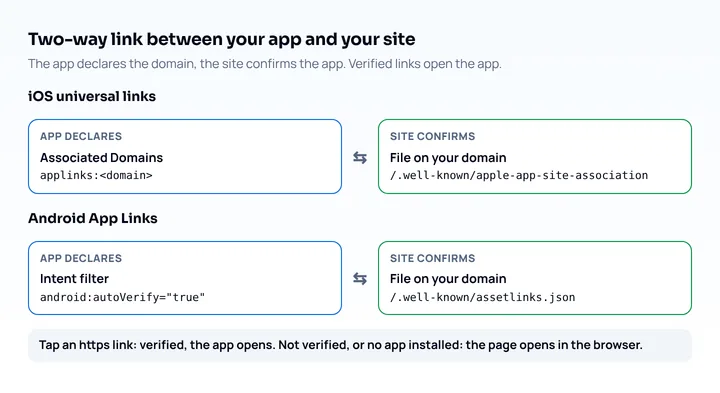
Universal links (iOS) and Android App Links open your app instead of your website when someone taps a normal https:// link, and the website’s part is two JSON files you host yourself: apple-app-site-association for iOS and assetlinks.json for Android. Both live under /.well-known/ on every domain the app handles, both must be served over HTTPS without redirects, and each one names the app that is allowed to open your URLs. The app needs a matching setting too (an entitlement on iOS, an intent filter on Android), shown below next to each file.
How universal links and Android App Links work
Both systems connect a website and an app in two directions: the app declares which domains it handles, and the website confirms it. Apple describes universal links as standard HTTP or HTTPS links, so one URL works for the website and the app, and users without the app get the page in their browser (Apple). Android App Links, in Google’s words, build on the same intent-based system as other deep links but add a verification step with a Digital Asset Links file on your website (Android Developers).
| iOS universal links | Android App Links | |
|---|---|---|
| File on the website | apple-app-site-association |
assetlinks.json |
| Location | https://<domain>/.well-known/apple-app-site-association |
https://<domain>/.well-known/assetlinks.json |
| What the app declares | Associated Domains entitlement, applinks:<domain> |
Intent filter with android:autoVerify="true" |
| Identifies the app by | Team ID plus bundle ID | Package name plus signing certificate fingerprint |
| When it is checked | At install, through Apple’s CDN | At install, and in the background on Android 15 and later |
“Deep link” is the broader term. A plain deep link may use a custom scheme or an unverified https:// link; universal links and App Links are the verified kind.
The iOS file: apple-app-site-association
Create a file named apple-app-site-association, with no extension, and list your app identifiers and the URL patterns the app should open. This is the sample structure from Apple’s documentation, shortened:
{
  "applinks": {
    "details": [
      {
        "appIDs": ["ABCDE12345.com.example.app"],
        "components": [
          { "/": "/buy/*", "comment": "Open URLs that start with /buy/ in the app." },
          { "/": "/help/website/*", "exclude": true, "comment": "Keep these in the browser." }
        ]
      }
    ]
  }
}
The appIDs value is the application identifier prefix (your Team ID), a dot, and the bundle identifier. Each entry in components matches a part of the URL, and "exclude": true tells the system not to open matching URLs in the app (Apple, Supporting associated domains). Apple also accepts an older format with appID and paths; its debugging note says not to mix the two (TN3155).
Host it at https://<fully qualified domain>/.well-known/apple-app-site-association with a valid certificate and no redirects. Three rules from Apple’s pages trip people up:
- Each subdomain needs its own entry in the app. A file at
example.comservesapplinks:example.comandapplinks:*.example.com, while a specific subdomain such aswww.example.comneeds its own file. - The file must be reachable from any IP address and for any user agent. A 403 or 404 from a firewall, a bot filter or a login wall stops Apple’s servers from caching it.
- Since iOS 14, devices do not fetch the file from your server. Apple’s CDN fetches and caches it, devices check for updates about once a week, and there is no way to invalidate the cache directly; reinstalling the app downloads a newer copy (TN3155).
While developing, you can add ?mode=developer to the entitlement entry (applinks:example.com?mode=developer) so the device reads the file straight from your server instead of Apple’s CDN.
The Android file: assetlinks.json
assetlinks.json is an array of statements that name your package and the SHA-256 fingerprint of the certificate that signs the app. Google’s example for one app:
[{
  "relation": ["delegate_permission/common.handle_all_urls"],
  "target": {
    "namespace": "android_app",
    "package_name": "com.example",
    "sha256_cert_fingerprints":
    ["14:6D:E9:83:C5:73:06:50:D8:EE:B9:95:2F:34:FC:64:16:A0:83:42:E6:1D:BE:A8:8A:04:96:B2:3F:CF:44:E5"]
  }
}]
Replace the package name and fingerprint with your own. The requirements, from Google’s guide (updated October 23, 2026):
- Serve it at
https://<domain>/.well-known/assetlinks.jsonwith content typeapplication/json. - Use HTTPS even if the app’s intent filters also declare
http. - No redirects, neither 301 nor 302.
- Publish it on every host domain the app handles.
- One file can list several apps, and the
sha256_cert_fingerprintsfield takes several fingerprints, for example debug and production builds.
If you use Play App Signing, the fingerprint from your local keytool will usually not match the one on users’ devices. Google says to take the correct JSON snippet from the Play Console, under Release > Setup > App signing.
The app side is an intent filter with autoVerify. This is the form from Android’s documentation:
<intent-filter android:autoVerify="true">
    <action android:name="android.intent.action.VIEW" />
    <category android:name="android.intent.category.DEFAULT" />
    <category android:name="android.intent.category.BROWSABLE" />
    <data android:scheme="http" />
    <data android:scheme="https" />
    <data android:host="www.example.com" />
</intent-filter>
Android verifies each hostname in such filters, and a wildcard host such as *.example.com needs the file at the root domain example.com (Android Developers). On Android 15 and later, verification also runs periodically, and a change to the file can take up to seven days to propagate; on Android 14 and lower the file is read only at install or update (Android Developers).
Server checklist
Both files fail for the same few reasons, so check the server once for both:
| Check | Why | How to test |
|---|---|---|
| HTTPS | Both platforms require it, and Apple asks for a valid certificate | Open the URL in a browser |
| No 301 or 302 | Redirects are not supported for either file | curl -sI shows a 200 |
| iOS: public to all IPs and user agents | Apple’s CDN fetches the file, and a firewall or bot filter blocks it | curl -A "MyAgent-Bot/1.0" <url> returns the file |
Android: Content-Type: application/json |
Google lists it as a requirement | curl -sI header |
| Same file on each domain and subdomain you list | Each host is verified on its own | Run the check per host |
For the content type, serving both files as application/json keeps the setup the same. Apple’s documentation does not state a content type for the iOS file, so treat that part as a choice. A static nginx example:
location = /.well-known/apple-app-site-association {
    default_type application/json;
}
location = /.well-known/assetlinks.json {
    default_type application/json;
}How to check that it works
Check the file from outside, then check the behavior on a device. Apple’s own debugging steps, from TN3155:
- Run
curl -v https://<domain>/.well-known/apple-app-site-associationand confirm a 200 and the JSON, not a 301, 302, 403 or 404. - On a Mac,
sudo swcutil dl -d <domain>checks that the file downloads, andsudo swcutil verify -d <domain> -j <path-to-JSON> -u <URL>checks that a URL matches a pattern. - On an iPhone, paste the link into the Notes app and long-press it. If everything is configured, the options to open in the app and in the browser both appear.
For Android, Google’s manual verification on Android 12 and later (for an app that targets below Android 12, first run adb shell am compat enable 175408749 com.example):
adb shell pm set-app-links --package com.example 0 all
adb shell pm verify-app-links --re-verify com.example
# wait a few minutes, then:
adb shell pm get-app-links com.example
The output lists each domain with a state such as verified or legacy_failure. Google also offers a Statement List Generator and Tester (Digital Asset Links tool) for testing an existing statement file. For a wider testing routine, see the mobile website testing checklist.
Where links do not open the app
Typing a URL into the browser’s address bar never opens the app on iOS, because it is direct navigation within the browser; if the user is already on your domain, a same-domain link stays in Safari too (TN3155). Apple’s fix for flows such as a login button is a different subdomain, with its own applinks entry and AASA file, so the system treats the tap as leaving the site.
In-app browsers need separate testing. Apple states that links tapped in a browser app or a WKWebView can open your app, but it also says third-party browsers decide whether to enable universal links (“Universal links may not be enabled in every web browser”, per TN3155), and that an app which opens your link through its own open(_:) call will not open yours in return (Apple). Whether a given social app’s browser hands the link to your app is not covered by the platform docs, so test each one you care about on a real phone.
Smart app banner as a fallback
A smart app banner is an iOS-only prompt on the web page: one meta tag in the <head> of each page where you want it. According to Apple, it opens the app if it is installed and links to the App Store if not.
<meta name="apple-itunes-app" content="app-id=myAppStoreID, app-argument=https://example.com/buy/42">app-id is required, and the optional app-argument passes a URL to the app so it can open the matching screen. Apple lists two limits: banners do not appear inside a frame, and they do not appear in the iOS simulator.
If you do not ship a native app, you do not need either file; a progressive web app is installed from the browser instead.
Check the fallback page on phone sizes
Everyone without the app, and every link that does not hand off, lands on your web page, so that page has to work on a phone. Mobile View Extension reloads the tab with a phone’s user agent, screen size and pixel ratio, so you see the real mobile version of the fallback page at several sizes, and you can use Chrome’s device emulation alongside it. It cannot test the app handoff itself: it runs desktop Chrome, has no touch events and no installed apps, so link handling needs an iPhone or an Android phone, or the iOS simulator or Android emulator. For iOS without hardware, see testing a website on an iPhone without an iPhone.
Frequently asked questions
What is the difference between universal links and deep links?
Deep links are the broad category; universal links are Apple’s verified kind, built on standard HTTP or HTTPS links. A deep link can also use a custom URL scheme, which is not tied to a website you control. Android App Links are the verified form on Android, adding the Digital Asset Links check to ordinary deep links.
Where does apple-app-site-association go?
It goes at https://<domain>/.well-known/apple-app-site-association, with no file extension, served over HTTPS with a valid certificate and without redirects. Each subdomain that the app lists needs its own copy.
Why does my universal link open Safari instead of the app?
Common causes are a redirect, a 403 or 404 on the file, a missing subdomain entry, or a same-domain tap. Apple lists these in TN3155; typing the URL into the address bar or tapping a link to the same domain while browsing it in Safari keeps the user in the browser. Check the file with curl -v first.
Do I need both files?
You need the file for each platform whose app you ship. A site with an iOS app and an Android app serves both, and each one is independent of the other.