
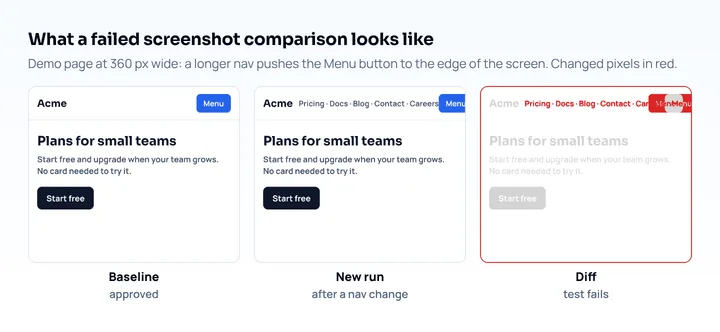
Visual regression testing compares screenshots of your pages against approved baseline images and fails when pixels change. For mobile layouts it catches what functional tests miss: a menu button pushed off a 360px screen, a heading that wraps into three lines, a card grid that collapses wrongly at tablet width. You can run it for free with Playwright’s toHaveScreenshot() at phone and tablet viewports, then decide whether a paid service is worth it for review workflows and cross-browser rendering in the cloud.
How visual regression testing works
A visual test has four steps: capture a baseline, capture again after a change, diff the two images, and let a person accept or reject the difference. Accepted changes become the new baseline.
The diff is where tools differ. Pixel comparison (Playwright, BackstopJS) counts changed pixels and fails above a threshold you set. Applitools compares with its own Visual AI instead of a strict pixel count, and Percy and Chromatic are hosted services with a review dashboard. All of them need stable pages: if a clock, an ad or an animation changes between two runs, the test fails for no real reason. Most of the setup work below is about removing that noise.
Tools compared
Playwright’s built-in assertion covers the free, self-hosted case. As of October 2026:
| Tool | Diff method | Cost | Where it is stronger |
|---|---|---|---|
Playwright toHaveScreenshot |
Pixel diff, local | Free, open source | Chromium, Firefox and WebKit in one runner, baselines in your repo |
| BackstopJS | Pixel diff, local | Free, open source | Config-only scenarios (no test code), HTML report, --docker flag |
| Percy (BrowserStack) | Cloud diff and review UI | Free plan: 5,000 screenshots a month | Hosted review and approval flow across browsers and widths |
| Chromatic | Cloud diff, Storybook-based | Free plan: 5,000 snapshots a month, Chrome only | Component-level testing for Storybook projects |
| Applitools Eyes | Visual AI | Starter from $667 a month, billed annually; free trial | AI comparison meant to skip rendering noise a pixel diff flags; large cross-browser grids |
Percy counts each page at each browser and width as one screenshot, so two pages at three phone and tablet widths in two browsers already use twelve. Plan prices and limits are from each vendor’s pricing page on October 25, 2026 and change often.
Set up visual regression tests at phone viewports
This setup uses @playwright/test 1.64 (current on October 25, 2026). It needs Node.js and a site you can open from the test machine, local or deployed.
-
Install Playwright and its browsers:
npm init playwright@latest -
Add mobile projects to
playwright.config.ts. Each device descriptor sets the viewport, pixel ratio, user agent and touch support, and picks the engine (iPhone 15runs in WebKit,Pixel 7in Chromium).import { defineConfig, devices } from '@playwright/test'; export default defineConfig({ testDir: './visual', use: { baseURL: 'http://localhost:4321' }, expect: { toHaveScreenshot: { maxDiffPixelRatio: 0.01 }, }, projects: [ { name: 'pixel-7', use: { ...devices['Pixel 7'] } }, { name: 'iphone-15', use: { ...devices['iPhone 15'] } }, { name: 'tablet', use: { browserName: 'chromium', viewport: { width: 820, height: 1180 } } }, ], });In Playwright 1.64 the
Pixel 7descriptor has a 412 × 839 viewport at a pixel ratio of 2.625, andiPhone 15has 393 × 659 at 3. The 1%maxDiffPixelRatiois a starting value you tune, not a standard. -
Write the test. Keep it to the pages whose layout matters most:
// visual/pages.spec.ts import { test, expect } from '@playwright/test'; const pages = ['/', '/pricing', '/blog']; for (const path of pages) { test(`layout ${path}`, async ({ page }) => { await page.goto(path); await page.evaluate(async () => { await document.fonts.ready; }); await expect(page).toHaveScreenshot({ fullPage: true, mask: [page.locator('[data-testid="live-date"]')], }); }); } -
Create the baselines and commit them:
npx playwright test --update-snapshotsPlaywright saves one PNG per test and project, with the project name and platform at the end of the file name (for example
...-iphone-15-linux.png). Commit the*-snapshotsfolders. -
Run
npx playwright teston every pull request. A failed comparison fails the test; open the HTML report withnpx playwright show-reportto look at the failure. If the change is intended, update the baselines with--update-snapshotsand commit them with the code change.
The defaults help here: toHaveScreenshot() waits until two consecutive screenshots match before comparing, disables CSS animations and transitions, and hides the text caret (Playwright API docs). Its scale option defaults to "css", one image pixel per CSS pixel, so an iPhone baseline is 393 px wide rather than 1179 and diffs stay fast.
Look at the layout before you take baselines
A baseline records how the page looked when you captured it. If the first screenshot already has a broken phone layout, every later run will defend the bug. Before you create baselines, look at each page at the widths you test:
- Open the page at a phone width. Mobile View Extension reloads the tab with a phone’s user agent, screen size and pixel ratio, and can show two devices side by side, so you can check the phone and tablet layouts of one URL together. It works on localhost.
- Scroll the whole page and check navigation, wrapping headings, tables and sticky elements.
- Fix what you find, then run
--update-snapshots.
The extension renders with desktop Chrome’s engine and a mouse, so it shows layout, not Safari rendering or touch behaviour. The WebKit project in Playwright covers part of that gap, and a real iPhone covers the rest. A wider routine for manual checks is in how to test responsive design, and one-off captures for tickets in taking a mobile screenshot of a website.
Fix flaky screenshot diffs
Flaky diffs come from things that change between runs, so the fix is to make those things the same every time. These are the usual sources and what to do about each:
| Cause | Fix |
|---|---|
| Different OS or browser build | Generate and compare baselines on the same machine type; in CI, a pinned Docker image that matches your Playwright version, such as mcr.microsoft.com/playwright:v1.64.0-noble |
| Web fonts arriving late or falling back | Wait for document.fonts.ready; self-host the fonts so a CDN delay cannot change the render |
| Dates, counters, ads, embeds | mask the locators, or hide them with a stylePath stylesheet |
| Carousels and JavaScript animations | Stop them with a test-only flag; toHaveScreenshot only freezes CSS and Web Animations |
| Hover states | Move the mouse away first: page.mouse.move(-1, -1) |
| Lazy images in full-page shots | Scroll to the bottom or wait for the images before capturing |
| Anti-aliasing noise | Raise threshold (default 0.2) or set maxDiffPixels |
The first row explains failures that look random. Playwright’s docs warn that rendering can vary with the host OS, version, settings and hardware, and the platform is part of the snapshot name for that reason: a baseline created on a Mac (-darwin.png) is not used on a Linux CI runner (-linux.png). Pick one environment for baselines. Running npx playwright test --update-snapshots inside the same Docker image that CI uses removes this source of difference.
A stylePath file is the cleanest place for hiding noise across all tests:
/* visual/screenshot.css */
iframe, [data-testid="cookie-banner"] { visibility: hidden; }
import path from 'node:path';
await expect(page).toHaveScreenshot({
stylePath: path.join(__dirname, 'screenshot.css'),
});The same option can go into expect.toHaveScreenshot in the config to apply to every test.
What visual tests do not catch
A screenshot diff checks pixels in the engines you run. It does not check that a button works, that a tap target is large enough, or how a page behaves on a real phone’s browser chrome and keyboard. Playwright’s WebKit is close to Safari but is not iOS Safari on an iPhone. Keep functional tests next to the visual ones, and cover real browsers with the cross-browser testing checklist.
Keep the suite small. Every page, project and state multiplies the number of images to review. Three to ten key templates (home, a listing, a detail page, a form) at two phone sizes and one tablet size keep the review to a few dozen images per run. That count is a starting point to adjust (a design choice), not a rule.
Frequently asked questions
Is visual regression testing free?
Yes, with open-source tools. Playwright’s toHaveScreenshot() and BackstopJS run locally and in your CI at no cost. Paid services such as Percy, Chromatic and Applitools add hosted rendering and review dashboards, and Percy and Chromatic have free plans of 5,000 screenshots or snapshots a month as of October 2026.
What is the difference between visual testing and screenshot testing?
Both capture a screenshot and compare it with an approved baseline. The difference is in the comparison: Playwright and BackstopJS count changed pixels, while Applitools uses Visual AI (see the tools table above).
Why do my Playwright screenshots fail in CI but pass locally?
Because the baselines were made on a different operating system or browser build. Playwright includes the platform in the snapshot file name, and fonts and anti-aliasing differ between macOS and Linux. Create the baselines in the same Docker image CI uses.
How do I ignore dynamic content in visual tests?
Use the mask option to cover elements such as dates and ads, or hide them with a stylePath stylesheet. For whole regions that change, take the screenshot of a stable element instead of the full page.