
Em vs rem comes down to what the size is relative to. rem is relative to the root element’s font size, so 1rem means the same thing everywhere on the page. em is relative to the font size of the element itself (or of its parent, when used on font-size), so it changes from component to component. px is a fixed CSS pixel that ignores the user’s font size preference. A practical default: rem for font sizes and page spacing, em for things that should grow with their own text (button padding, icon size), px for borders and shadows, and em or rem in media queries.
Em vs rem: how each unit is calculated
The three units differ only in their reference point. MDN’s length reference defines them this way (checked October 2026):
| Unit | Relative to | 1 unit at browser defaults |
|---|---|---|
px |
Nothing: 1px = 1/96 in | 1px |
rem |
Font size of the root element (<html>) |
16px |
em in font-size |
Inherited font size (the parent’s) | 16px, or the parent’s size |
em in any other property |
The element’s own computed font size | The element’s font size |
The 16px figure is the common browser default, not a constant. MDN notes that user preferences can change it, and that is the whole reason to prefer relative units for text.
In a component:
html { font-size: 100%; }      /* 16px at browser defaults */

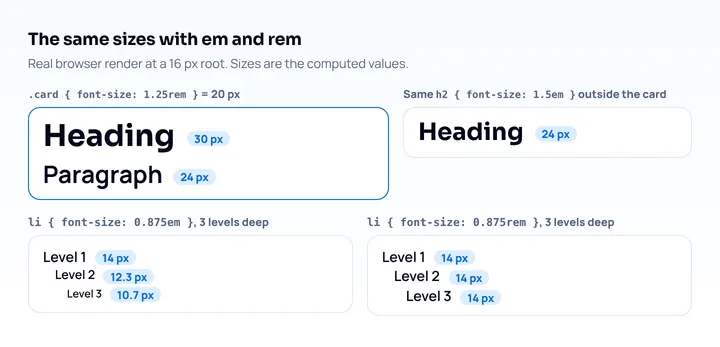
.card { font-size: 1.25rem; }  /* 20px */
.card h2 { font-size: 1.5em; } /* 1.5 × 20px = 30px */
.card p  { font-size: 1.5rem; }/* 1.5 × 16px = 24px, the card does not matter */
.card .tag { padding: 0.5em; } /* half of the tag's own font size */
The em heading depends on where it sits. Move it out of .card and it becomes 24px. The rem paragraph is 24px anywhere.
Why em compounds
Because em on font-size multiplies the parent’s size, nested elements multiply again:
li { font-size: 0.875em; }A list three levels deep ends up at 0.875 × 0.875 × 0.875 ≈ 0.67 of the base size: about 10.7px from a 16px root. With 0.875rem every level stays at 14px. This compounding is why rem is the safer choice for font sizes, and why em belongs in places where scaling with the local text is the point.
Which unit to use for each CSS property
Pick the unit by asking what the size should follow: the user’s text preference, the component’s own text, or nothing. These are recommendations and a design choice; no spec requires them:
| Property | Unit | Why |
|---|---|---|
font-size |
rem |
Follows the user’s default text size, no compounding |
line-height |
Unitless (1.5) |
Scales with whatever font size the element ends up with |
| Padding of buttons, badges, inputs | em |
Grows with the control’s own text, so large text does not touch the edges |
| Margins and gaps between page sections | rem |
Consistent rhythm across components |
max-width of a text column |
rem or ch |
Line length stays readable when text grows |
| Icon size next to text | em |
Matches the text it sits beside |
letter-spacing |
em |
Tracking is proportional to the font size |
border-width, outline, box-shadow |
px |
A hairline should stay a hairline at any text size |
| Media query conditions | em (or rem) |
Breakpoints move with the user’s default font size |
Layout widths in px are fine when they should follow the screen rather than the text. A 1px border, a fixed 44px avatar or a 1200px page container does not need to grow with font size. Text inside those boxes does.
Spacing is a judgement call. Spacing in rem keeps the page’s rhythm in step with text when a user enlarges it. Spacing in px keeps more content on a small screen at large text sizes. On a 360px wide phone that trade-off is visible quickly, which is why it is worth testing (see the last section).
Rem vs px for font size and accessibility
Use rem (or %, or keywords like medium) for font sizes, because px font sizes ignore the default font size the user picked in the browser. In Chrome on desktop that setting lives under Settings > Appearance > Font size, with more options in Customize fonts (Chrome Help). A user who raises it from the default to 20px gets 20px body text from 1rem and still gets 16px from 16px.
Browser zoom works differently. Zoom scales everything, px included, so a px layout still enlarges when the user presses Ctrl and +. The font size setting is the case where rem and px behave differently, and it is the setting people with low vision rely on when they want larger text without a horizontally scrolling page.
WCAG 2.2 success criterion 1.4.4 Resize Text (level AA) asks that text can be resized up to 200 percent without loss of content or functionality. Its sufficient techniques include using em units for font sizes. Relative units make that criterion easier to meet; they do not guarantee it, because a fixed-height box can still clip text that grew.
Phones and the system text size
On phones the picture is changing. Chrome 146 (stable on March 10, 2026) added an opt-in meta tag that makes the root font size follow the operating system’s and browser’s text scale setting (Chrome 146 release notes):
<meta name="text-scale" content="scale">
<meta name="viewport" content="width=device-width, initial-scale=1">
With the tag, MDN’s text-scale reference says, rem, em and font-size keywords scale with the system setting and px font sizes do not. As of October 2026 MDN marks the tag experimental with limited availability, and it warns that mobile text scale can range from 200% to over 300%, so a page that opts in needs testing at those sizes. Without the tag, Chrome on Android offers a Default zoom slider under Settings > Accessibility, which zooms the whole page (Chrome Help), so px and rem grow together there.
This is the strongest argument for rem font sizes today: a site sized in rem is ready for system text scaling the day it adds one meta tag.
The root font size and the 62.5% trick
Leave the root font size alone, or set it as a percentage. Setting html { font-size: 16px; } overrides the user’s preference for the whole page, because every rem now points at a fixed 16px.
The well-known 62.5% trick sets html { font-size: 62.5%; } so that 1rem equals 10px at defaults and 1.6rem equals 16px. It keeps user scaling, because the percentage is applied to the user’s default. Its cost is that any third-party component written for a 16px rem comes out at 62.5% of its intended size. If you want easy maths, a Sass function or a CSS custom property does the conversion without changing the root.
Px to rem conversion table
At the default root font size, rem = px / 16:
| px | rem |
|---|---|
| 12 | 0.75 |
| 14 | 0.875 |
| 16 | 1 |
| 18 | 1.125 |
| 20 | 1.25 |
| 24 | 1.5 |
| 32 | 2 |
Keep inputs at 16px (1rem) or larger: iOS Safari zooms into form fields whose text is smaller.
Em, rem or px in media queries
Use em or rem in media query conditions, because then breakpoints move with the user’s default font size. In media queries both units mean the same thing: the Media Queries Level 4 spec says relative units there are based on the initial font size, set by the user agent or the user’s preferences, not on your html rule.
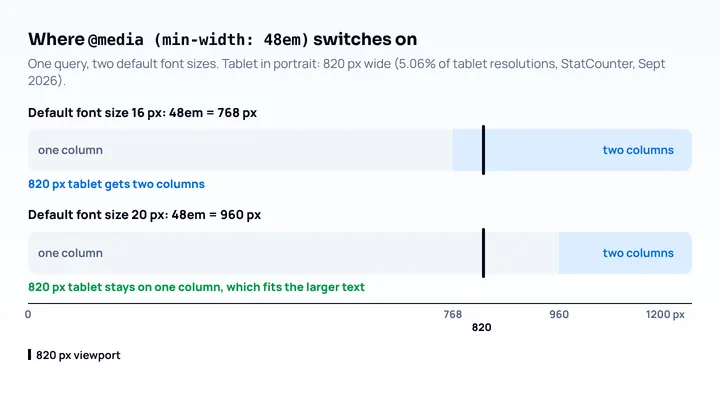
/* 48em = 768px at a 16px default, 960px at a 20px default */
@media (min-width: 48em) {
  .layout { display: grid; grid-template-columns: 1fr 2fr; }
}
Take a tablet in portrait with an 820px wide viewport (820x1180 was 5.06% of worldwide tablet resolutions in StatCounter’s September 2026 data). At default settings the two-column layout turns on at 768px, so the tablet gets two columns. A user with a 20px default gets the single column until 960px, which is the layout that still fits their larger text. A min-width: 768px query would force two columns on them and squeeze the text.
How to pick breakpoint values in the first place is covered in choosing responsive breakpoints, and the query syntax itself in the CSS media queries guide.
Check your units at phone width
To see whether your units respond to the user’s text size, enlarge the default font and look at the page at a small phone width:
- In desktop Chrome, open Settings > Appearance > Font size and choose a larger size, or set an exact size in Customize fonts.
- Open the page at a 360px wide phone viewport. Mobile View Extension reloads the tab as a phone with a mobile user agent and screen size; pick a preset or enter 360 × 800 as a custom resolution. DevTools device mode works too.
- Check that body text got bigger. If it did not, something sets a
pxfont size or apxroot size. - Look for text that overflows buttons, labels cut off in fixed-height boxes, and navigation that wraps into two lines.
- Put the setting back to the default and compare the two states side by side.
This only tests the desktop font size setting. The preview runs in desktop Chrome with a mouse, so it does not reproduce a phone’s system text size, Safari’s rendering, or the text-scale meta tag on Android. For those, use a real phone or an emulator and raise the system font size there.
More on how fluid layouts are built from these units is in what responsive web design is.
Frequently asked questions
Should I use rem or px for font size?
Use rem for font size. A px font size ignores the default text size the user chose in the browser, while rem follows it, and rem font sizes are also what Chrome’s text-scale meta tag scales on phones.
When should I use em instead of rem?
Use em when a size should follow the element’s own text: button and badge padding, icons inside text, letter spacing, and media query conditions. Avoid em for nested font-size values, because it compounds.
Is 1rem always 16px?
No. 1rem equals the root element’s font size, which is 16px only at the common browser default. A user setting, a percentage on html, or the text-scale meta tag can change it.
Do em and rem behave differently in media queries?
No. In media queries both are based on the initial font size from the browser and user settings, so 48em and 48rem give the same breakpoint. A font size set on html in your stylesheet does not affect them.